What's inside
- Best 4K webcams at a glance
- Our picks by situation
- Logitech MX Brio: the best balanced webcam for work
- Elgato Facecam Pro: the strongest choice for streaming
- OBSBOT Tiny 2: best for moving presenters
- Razer Kiyo Pro Ultra: best image in difficult light
- Dell UltraSharp WB7022: best for a wide office frame
- How to choose image quality that actually helps
- Compatibility and setup checklist
- Ownership realities
- Best 4K webcams at a glance
- Our picks by situation
- Logitech MX Brio: the best balanced webcam for work
- Elgato Facecam Pro: the strongest choice for streaming
- OBSBOT Tiny 2: best for moving presenters
- Razer Kiyo Pro Ultra: best image in difficult light
- Dell UltraSharp WB7022: best for a wide office frame
- How to choose image quality that actually helps
- Compatibility and setup checklist
- Ownership realities
As an Amazon Associate I earn from qualifying purchases. This post may contain affiliate links at no extra cost to you.
The best 4K webcams for most buyers are the Logitech MX Brio for everyday work, the Elgato Facecam Pro for streaming and studio-quality video, and the OBSBOT Tiny 2 for presenters who want automatic tracking and flexible framing.
A 4K webcam can produce a noticeably sharper image than a typical 1080p model, but resolution is only part of the decision. Lens quality, autofocus behavior, sensor size, lighting, microphone pickup, field of view (FOV), and software compatibility often matter more during an actual call. The right choice depends on whether you need a polished fixed shot, a wide view of a workshop, or a camera that follows you while you move.
As an Amazon Associate we earn from qualifying purchases at no extra cost to you.



Sections
- Best 4K webcams at a glance
- Our picks by situation
- Logitech MX Brio: the best balanced webcam for work
- Elgato Facecam Pro: the strongest choice for streaming
- OBSBOT Tiny 2: best for moving presenters
- Razer Kiyo Pro Ultra: best image in difficult light
- Dell UltraSharp WB7022: best for a wide office frame
- How to choose image quality that actually helps
- Compatibility and setup checklist
- Ownership realities
Our Top Picks


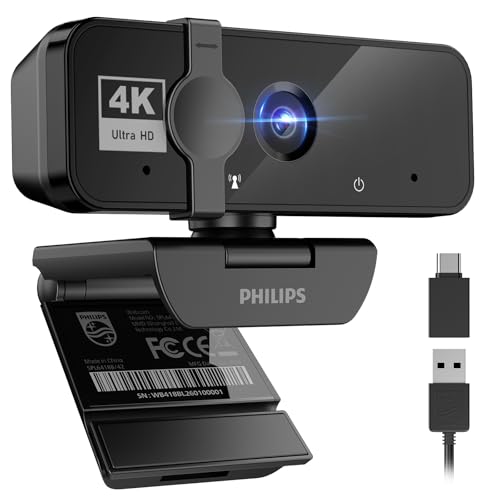
Best 4K webcams at a glance
| Webcam | Best for | Maximum video | Field of view | Autofocus / tracking | Microphones |
|---|---|---|---|---|---|
| Logitech MX Brio | Work calls and general use | 4K at 30 fps; 1080p at 60 fps | 90°, 78°, or 65° diagonally | Autofocus; automatic light correction | Dual beamforming microphones |
| Elgato Facecam Pro | Streaming and content creation | 4K at 60 fps | Up to 90° diagonally | Autofocus | No built-in microphone |
| OBSBOT Tiny 2 | Presenters and movement | 4K at 30 fps | Up to 86° diagonally | AI tracking and gesture control | Dual omnidirectional microphones |
| Razer Kiyo Pro Ultra | Low-light video | 4K at 30 fps; 1080p at 60 fps | Up to 103° diagonally | Autofocus | Built-in microphone |
| Dell UltraSharp WB7022 | Wide-angle office framing | 4K at 30 fps | 90° diagonally | Autofocus; auto framing | None |
Specifications can vary by software mode, operating system, and firmware. Video-call services may also reduce a 4K camera feed to 1080p or lower depending on bandwidth and account settings.
Our picks by situation
| Your situation | Best choice | Why |
|---|---|---|
| Frequent meetings in a small office | Logitech MX Brio | Adjustable FOV, useful privacy shutter, good microphones, and broad compatibility. |
| Streaming or recording tutorial videos | Elgato Facecam Pro | 4K/60 video, strong manual controls, and a lens designed for a dedicated microphone setup. |
| Standing presentations or demonstrations | OBSBOT Tiny 2 | Motorized pan, tilt, zoom, and tracking keep the speaker in frame. |
| Dim room with inconsistent lighting | Razer Kiyo Pro Ultra | Large sensor and wide-aperture lens produce a cleaner image in difficult light. |
| Two people sharing one desk frame | Dell UltraSharp WB7022 | Wide 90° framing and automatic correction suit group calls. |
Logitech MX Brio: the best balanced webcam for work
The MX Brio is the safest all-round recommendation for office calls, remote collaboration, and occasional content creation. Its 4K resolution gives text, faces, and workshop objects more definition, while its selectable 90°, 78°, and 65° views let you avoid showing more of the room than necessary.
Autofocus is useful when you hold a product, drawing, or small component toward the camera. The camera can refocus on the object and return to your face without requiring manual adjustment. Its automatic light correction is helpful near a window, although it cannot replace a front-facing lamp in a genuinely dark room.
The dual beamforming microphones are convenient for calls at normal desk distance. They are adequate for meetings, but a USB microphone or headset remains preferable for narrated videos, noisy workshops, and live streams. The MX Brio works with common Windows and macOS calling applications and connects over USB-C, with a USB-A adapter included in many packages.
Elgato Facecam Pro: the strongest choice for streaming
The Facecam Pro stands out because it can record 4K at 60 frames per second. That extra frame rate makes hand movements, demonstrations, and camera motion look smoother than 30 fps video. It is especially useful for makers who record tool demonstrations or want to crop and edit footage later.
The lens offers a wide view and manual control over exposure, white balance, shutter speed, ISO, and focus. Those controls reward users who are willing to spend a few minutes setting up a consistent scene. They can also prevent the camera from repeatedly changing brightness when a pale board or dark tool enters the frame.
There is no built-in microphone, which is a disadvantage for plug-and-play calls but an advantage for serious recording. You can choose a USB microphone, headset, or audio interface instead of accepting the compromises of a tiny camera microphone. The Facecam Pro is comparatively large and heavy, so check that your monitor or tripod mount can support it.
OBSBOT Tiny 2: best for moving presenters
The OBSBOT Tiny 2 uses a motorized gimbal and AI tracking to follow a person as they move. That makes it a practical choice for teaching, standing presentations, live demonstrations, and a desk positioned away from the monitor. Gesture controls can start or stop tracking without reaching for the computer.
Tracking is useful, but it is not magic. Busy backgrounds, multiple people, poor light, and rapid movement can make subject selection less predictable. For a seated meeting where the camera never moves, a fixed webcam is usually simpler, quieter, and less expensive.
The Tiny 2 includes dual microphones and supports common computer video applications. Its automatic framing can make a single presenter look polished, while manual pan, tilt, and zoom provide more control when you want a particular section of a workbench in view.
Razer Kiyo Pro Ultra: best image in difficult light
The Kiyo Pro Ultra is a strong option for rooms where lighting cannot be controlled perfectly. Its relatively large 1/1.2-inch sensor and wide-aperture lens help preserve detail and reduce the muddy appearance common with small-sensor webcams in dim conditions.
It records 4K at 30 fps and 1080p at 60 fps. The wide maximum view is useful when you need to include a second person or a larger section of a desk, although a wide lens can make a face near the edge look stretched. Razer’s software provides image adjustments for users who want more control than automatic mode offers.
The built-in microphone is suitable for ordinary calls, but it should not be the deciding factor for streaming. In a room with fans, machinery, or reflective hard surfaces, use a headset or separate microphone and position it close to your mouth.
Dell UltraSharp WB7022: best for a wide office frame
The Dell UltraSharp WB7022 is designed around a sharp, wide 4K image rather than a built-in microphone. Its 90° field of view works well for two people at one desk or for showing a little more of a workspace without moving the camera far away.
Automatic framing and exposure correction reduce setup time, while the camera’s privacy shutter helps cover the lens when it is not in use. Because it has no microphone, budget for a headset or dedicated audio device. That makes it less convenient for casual laptop calls but appealing if you already have a reliable audio setup.
How to choose image quality that actually helps
Autofocus
Autofocus matters when you regularly hold objects close to the lens or change your distance from the camera. For a fixed face-at-desk shot, reliable focus matters more than rapid focus. A webcam that hunts between your face and the background can look worse than a good fixed-focus model.
Low-light performance
Sensor size and lens aperture generally matter more than a “4K” label. Add a small light in front of you and slightly above eye level before paying extra for a premium camera. This reduces noise, improves skin and object detail, and gives autofocus more information to work with.
Field of view
Use about 65° for a tight solo head-and-shoulders frame, 78° to 90° for a normal desk, and 90° or wider for two people or a demonstration area. A wide FOV also shows more background, so it may require additional tidying or a carefully positioned backdrop.
Microphone pickup
Built-in microphones are convenient, not universally superior. They work best when the camera is close to you in a quiet room. For a keyboard-heavy desk, open workshop, or recorded narration, a headset or separate microphone will usually produce clearer speech and fewer echoes.
Compatibility and setup checklist
- Confirm that your computer has the required USB port or use a suitable adapter.
- Use a direct USB connection rather than an overloaded hub when recording 4K.
- Install the manufacturer’s utility only when you need firmware updates, framing, or manual image controls.
- Select the webcam and microphone separately in your calling application.
- Place the lens near eye level and leave roughly 60 to 100 cm between your face and the camera.
- Point a light toward your face rather than placing a bright window directly behind you.
- Test the application’s actual output resolution; a 4K webcam does not guarantee a 4K call.
Ownership realities
Webcams have few consumables, but the lens and privacy shutter are the parts most likely to suffer from handling. Clean the lens with a clean microfiber cloth; avoid paper towels, abrasive cleaners, and spraying liquid directly onto the camera. Dust on the lens can look like poor autofocus or low-light noise.
Motorized models add moving parts and should not be forced by hand. Keep their travel area clear, disable tracking when it is unnecessary, and update firmware if the manufacturer releases stability or compatibility fixes. Fixed cameras are usually easier to leave mounted permanently, while gimbal cameras are more flexible but need more careful placement.
For most buyers, choose the MX Brio if you want one webcam for work and occasional recording. Choose the Facecam Pro if video quality and manual control matter more than built-in audio. Choose the Tiny 2 for movement, the Kiyo Pro Ultra for dim rooms, and the WB7022 for wide, sharp office framing.